Booking with TRMNL
Booking with TRMNL lets anyone reserve a supported resource by scanning a QR code. The visitor does not need a TRMNL or calendar-provider account.
Use it on a room display, on a collection overview, or as a printed code near the resource.
Supported integrations
Booking with TRMNL is available for writable calendars synchronized through:
- Google Personal with Calendar event access authorized.
- Google Workspace.
- Microsoft Outlook.
- Microsoft Exchange.
iCal feeds are read-only and do not support Booking with TRMNL.
A calendar must also be selected under Synchronized Calendars on its integration. An unselected calendar has no public booking link, even when the provider allows writes.
How access is controlled
Three settings determine whether a QR appears:
- Installation setting: Settings > Booking with TRMNL enables or disables public booking for the entire Booking installation.
- Resource setting: Show booking QR code controls whether an individual calendar display shows its QR.
- Collection setting: Show booking QR code controls whether a collection display shows its shared QR.
Disabling the installation setting makes all of its public booking links unavailable, regardless of the resource or collection setting.
The QR setting only controls whether the code is rendered on that display. Provider write access, selection under Synchronized Calendars, and a valid public booking link are also required.
Enable Booking with TRMNL
Enable it for the installation
- Open Apps > Booking > Settings.
- In the Booking with TRMNL section, turn on Allow booking on the spot.
- Save the settings.
The same Booking with TRMNL section holds three more settings that shape the public page. All of them are installation-wide.
Bookable Until
Bookable Until sets how far ahead of today a visitor may reserve. The options are 1 day, 2 days, 1 week, and 1 month; the default is 1 week.
This is separate from the seven-day calendar view described under View availability. The calendar always shows the next seven days of confirmed bookings; Bookable Until controls which of those days a visitor may actually book. Setting it to 1 day means a visitor sees a week of schedule but can only reserve today.
Provider policy applies on top of this. Exchange enforces its own BookingWindowInDays per room, and a booking must satisfy both limits.
Show Calendar
Show Calendar controls whether the public page offers the View calendar tab at all. Turn it off to publish a booking form that never reveals the existing schedule — useful when meeting titles or booking patterns should not be visible to visitors.
QR Code Security (daily URL rotation)
QR Code Security rotates each public booking URL daily, so a copied or photographed link stops working the next day.
Rotation happens when a device screen renders on a new date in the resource's time zone: the old token is replaced and any URL carrying it returns a not-found page.
This invalidates printed codes. A code printed today stops scanning tomorrow. Treat rotation and printed codes as mutually exclusive:
- Use rotation for on-screen QR codes, where the display always shows the current day's URL.
- Leave rotation off where you rely on a printed or laminated code, and control access by placement instead.
A resource whose screen is not rendering — unassigned to a device, or a device that is offline — does not rotate, because rotation is driven by the render.
Enable a resource QR
- Open Calendars and select a Google or Microsoft calendar.
- Select Edit.
- Enable Show booking QR code.
- Save the calendar.
Enable a collection QR
- Open Collections and select a collection.
- Select Edit.
- Enable Show booking QR code.
- Save the collection.
The collection must contain at least one resource available for public booking.
On-screen and printable codes
When enabled, the QR appears in the corner of the resource or collection screen. The same booking URL can be printed:
- Open the resource or collection in TRMNL.
- Select Print booking code.
- Print the page and place it near the intended resource.
Test the printed code with a phone before posting it. Small codes, reflective covers, low light, or excessive viewing distance can make scanning unreliable.
Visitor workflow
Individual resource
- Scan the QR code.
- Review current availability.
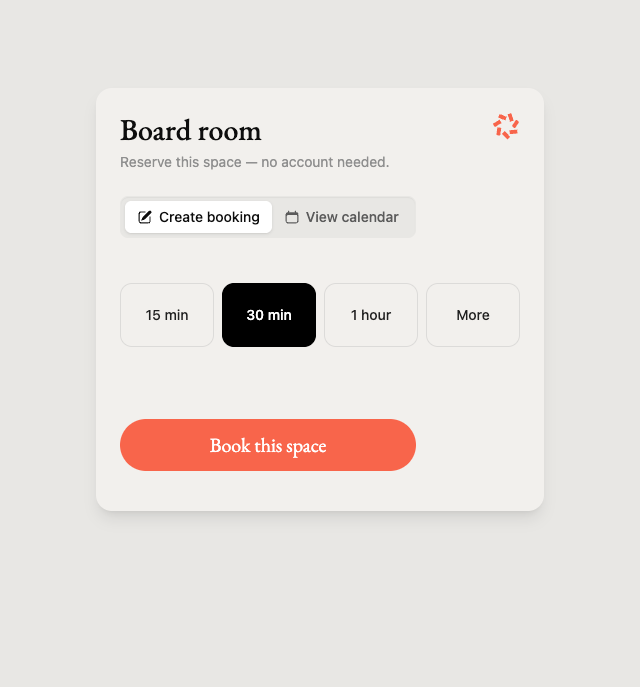
- Choose a 15-minute, 30-minute, or 1-hour quick duration, or select More for custom start and end times and an optional booking title.
- Resolve any displayed overlap.
- Submit the booking.
Choose a quick duration to reserve the resource immediately:
Select More to choose a specific date, start and end times, and an optional meeting title:
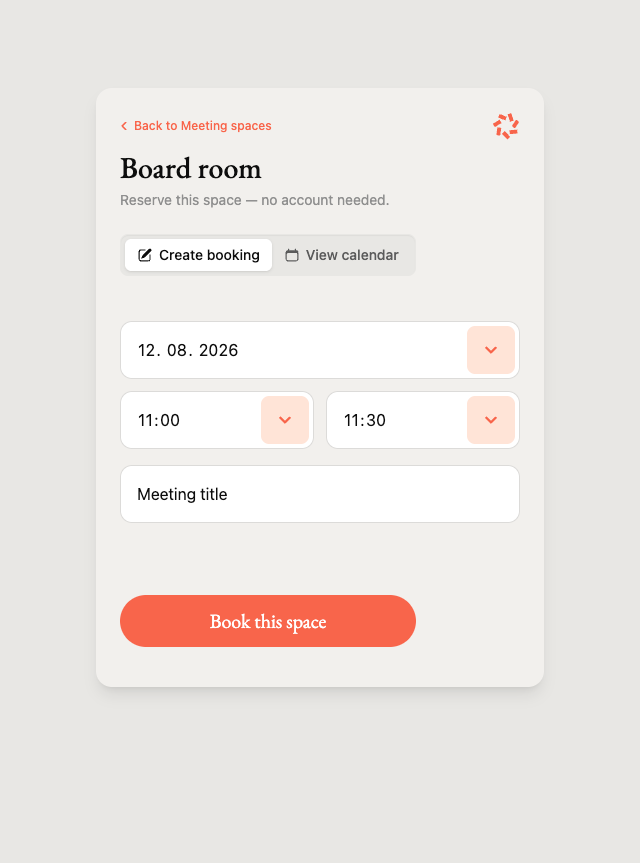
TRMNL creates a provider event titled "Occupied" unless the booker supplied their own title, and sets the event description to "Booked on the spot".
Resource collection
- Scan the collection QR code.
- Choose one of the collection's bookable resources.
- Review that resource's availability.
- Choose a duration and submit the booking.
The collection page lists the resources available for public booking:
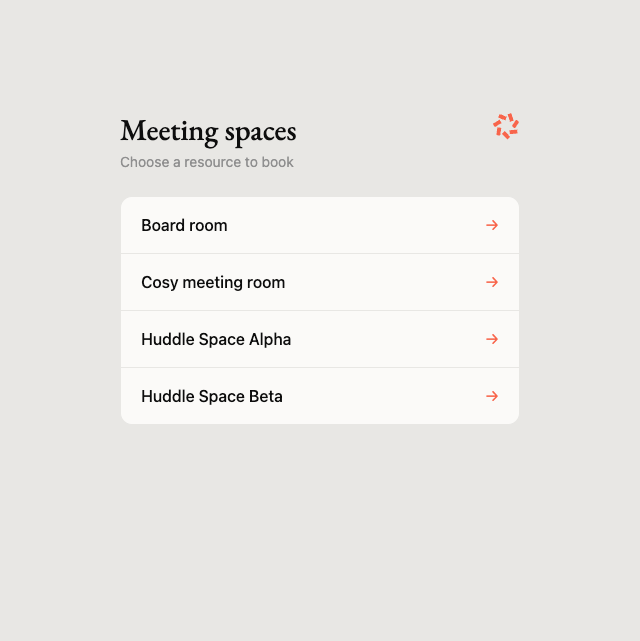
Read-only resources are not shown in the chooser even if they appear on the collection display.
Resources marked unavailable are also omitted from public booking while remaining visible on collection displays. On-demand resources can be booked only for the current time: visitors choose a 15-, 30-, or 60-minute duration, Other is disabled, and the page displays "Available now, but advance booking is restricted."
View availability
The booking page has two views:
- Create booking: Choose a quick or custom interval.
- View calendar: Review confirmed bookings over the next seven days.
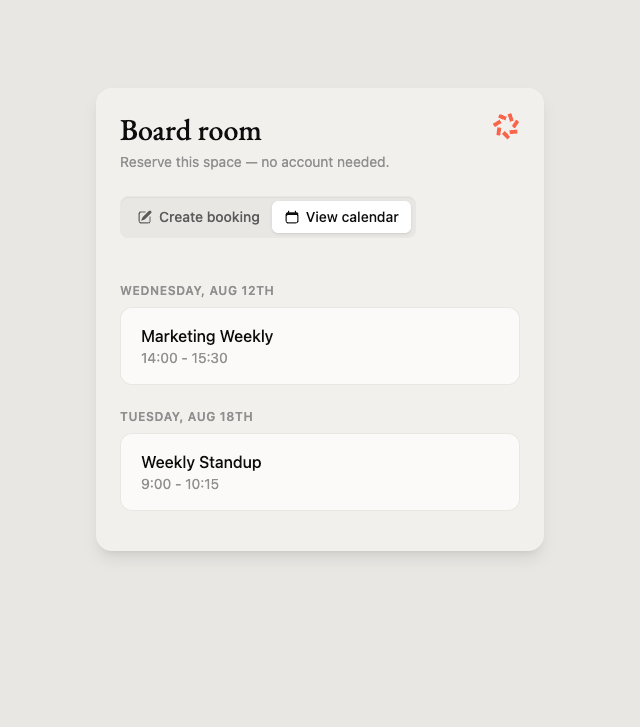
The seven-day calendar is fixed and is not affected by the Bookable Until setting, which controls how far ahead a visitor may reserve. A visitor can therefore see a booking they are not allowed to schedule against. The View calendar tab is hidden entirely when Show Calendar is turned off.
Availability is shown in the resource's effective time zone and follows the installation's 12- or 24-hour time preference.
The page refreshes provider events when needed. A last-sync timestamp is returned with availability so the booking form can use current schedule data.
Conflict prevention
TRMNL checks conflicts at several points:
- The page loads the resource's current confirmed bookings.
- The form warns when the selected interval overlaps an existing event.
- Immediately before writing, TRMNL refreshes the provider calendar.
- The server rejects an interval that now overlaps another confirmed booking.
- The provider can still apply its own availability and permission rules.
If another person takes the slot between selection and submission, the visitor sees that the time was just taken and must choose another interval.
Quick-duration buttons are limited by the next booking. Custom intervals must have a valid start before end and must not overlap an existing event. Workspace pools instead remain available until their concurrent booking capacity is exhausted.
Provider behavior
TRMNL creates the event directly on the selected Google calendar. Cancelling the booking through TRMNL cancels the corresponding Google event.
Microsoft Outlook
TRMNL creates the event through the connected Microsoft account on the selected calendar.
Microsoft Exchange
TRMNL creates a meeting from the configured booking organizer, or from the connected account when no shared organizer is configured, and invites the room. Exchange room policy determines final acceptance.
Cancelling a Booking with TRMNL
The public booking page does not provide a cancellation control. The Booking owner can cancel a TRMNL-created booking from the resource page. Administrators can also manage the event in the provider calendar where their provider permissions allow it.
After cancellation, refresh the calendar if the device or booking page does not update promptly.
Privacy and security
The QR URL is public and tokenized. It does not identify the visitor or require authentication.
- Anyone who obtains the URL can open the booking page while Booking with TRMNL is enabled.
- Post printable codes only in places intended for potential bookers.
- Enable QR Code Security to rotate the URL daily, so a copied link expires the next day. This also invalidates printed codes.
- Disable Booking with TRMNL globally to invalidate access for the installation.
- Disable a resource or collection QR when that target should no longer advertise public booking.
- Turn off Show Calendar to keep the existing schedule off the public page.
- Avoid putting confidential information in a Booking with TRMNL title; anyone scanning the code can read the titles on the public schedule.
- Existing provider events may expose titles on the public schedule according to provider privacy and sharing settings.
The public page only allows access to the resource represented by the token. A collection token only exposes resources currently included in that collection and available for public booking.
Operational recommendations
- Pilot with one low-risk room before enabling every resource.
- Test a free slot, a conflict, a cancellation, and a provider-side event change.
- Confirm displayed time zone and time format on both the phone and TRMNL device.
- Review whether meeting titles should be visible in public areas.
- Set Bookable Until to the shortest period that suits the resource; a short window limits how far a visitor can tie up a room.
- Decide between rotation and printed codes before posting anything, and re-check printed codes after enabling QR Code Security.
- Print a replacement code after recreating a resource or collection if its previous link no longer works.
Troubleshooting
The QR is not visible on the device
Confirm the installation-wide setting and the resource or collection QR setting are both enabled. Then confirm the target uses a writable Google or Microsoft calendar.
The print option is unavailable
Public booking is unavailable for the target. iCal calendars cannot print a booking code, and a collection needs at least one bookable resource.
The booking link returns a not-found page
The link is unknown, disabled, attached to an inactive installation, or no longer eligible for public booking. Open the resource or collection in TRMNL and print its current code.
If the link worked yesterday and fails today, check whether QR Code Security is enabled — rotation replaces the URL each day, and any printed copy of the old one stops working.
The QR is not visible for a calendar the provider allows writing to
Confirm the calendar is selected under Synchronized Calendars on its integration. An unselected calendar has no public booking link.
A collection resource is missing
The resource may be read-only, disconnected, removed from the collection, or unavailable for public booking. Synchronize its integration and inspect the individual calendar.
The selected time suddenly became unavailable
Another booking was created after the page loaded. Choose a different interval and submit again.
Google rejects the booking
Reconnect the account if Calendar event access was revoked. For Workspace resources, verify the connected administrator can edit the resource calendar.
Exchange declines the room
Inspect Exchange room policy, organizer delegation, booking limits, and the decline response. See the Microsoft Exchange administrator guide.
Times appear in the wrong time zone or format
Check the calendar time zone, then review Booking > Settings > Time Zone and Time Format.