Branding
Add your company logo to Booking so it appears on resource and collection displays.
Prepare your logo
Start with a high-contrast, monochrome version of your logo. It is the fallback on every device palette. After saving it, you can also upload a full-color version for BWRY and 6-color displays.
TRMNL devices use limited color palettes, so gradients, subtle colors, shadows, and fine details may disappear when either image is rendered.
SVG is the best format because it stays sharp at different display sizes. PNG and JPEG are also supported. The file must be no larger than 2 MB.
For the clearest result:
- Use solid black artwork on a white or transparent background.
- Remove taglines and small details that may be difficult to read.
- Leave some space around the artwork.
- Avoid relying on color to distinguish parts of the logo.
Prepare both versions
This logo normally uses orange artwork:

Use the color artwork for the optional color logo. Also convert it to solid black on a white background for the required monochrome logo:

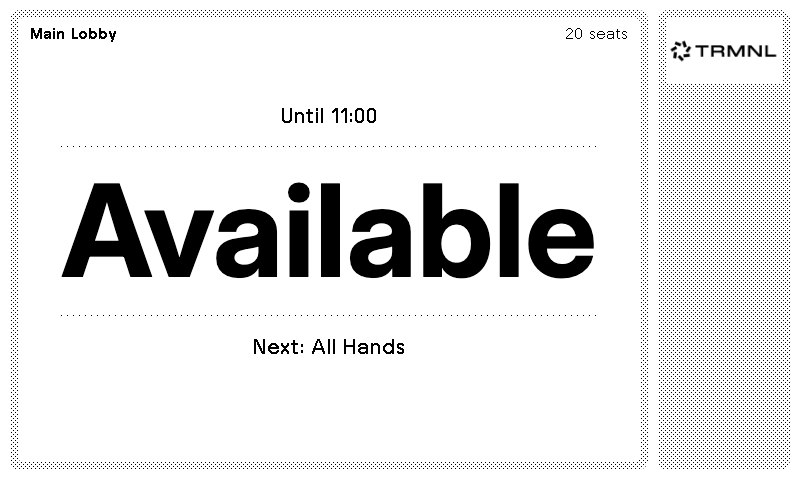
Preparing the monochrome logo yourself gives you control over its contrast instead of relying on automatic grayscale conversion. The black-on-white version keeps its shapes and wordmark clear when rendered on other device palettes:
Add your logo
- Open Apps > Booking > Settings.
- Enable Show Company Branding.
- Under Monochrome Logo File, select Choose File and upload the monochrome logo.
- Save the settings. The color logo field now appears below it.
- Under Color Logo File, select Choose File and upload the color logo.
- Save the settings again.
For the monochrome logo, review the 1-bit, 2-bit, and 4-bit previews. For the color logo, review the BWRY and 6-color previews. If important details disappear, simplify the artwork, increase its contrast, or adjust its colors and upload it again.
The logo appears on individual resource displays, resource collection displays, and the Booking with TRMNL page reached from the QR code. Enabling branding reduces the space available for booking details, so preview your layouts on the target device. To hide the logo on one display only, turn off Show company logo on the edit page of that resource or collection.
Render fidelity
Configure each device to use a palette that can preserve enough detail in the logo:
- For BWRY and 6-color palettes, Booking uses the color logo when one is uploaded.
- For TRMNL OG, use at least the 2-bit palette.
- For TRMNL X, use the 4-bit palette.
Every other palette uses the monochrome logo. BWRY and 6-color displays also fall back to it when no color logo is available.
Open Devices, select the device, then open Presentation under Device settings and choose the recommended color palette. A higher-bit palette supports more shades of gray, producing smoother edges and a result closer to the branding preview.
Replace or remove your logo
Open Apps > Booking > Settings to upload a replacement or remove a logo. Removing the monochrome logo also removes the color logo because the monochrome version is the required fallback. You can turn off Show Company Branding to hide both logos without deleting them.