Resource collections
A resource collection groups several calendars into one TRMNL display. Use a collection for an office-wide room overview, a bank of bookable desks, a vehicle pool, a team availability board, or another set of resources that should be understood together.
Collections can include Google, Microsoft, and iCal calendars from the same Booking installation.
What a collection displays
Each resource shows its current state:
- Occupied: Current booking title or organizer and its time span, depending on the layout and available provider data.
- Available: The start time of today's next booking, or that nothing else is scheduled today.
The display refreshes with the calendars in the collection. Provider synchronization and event privacy determine how quickly changes appear and which meeting details are visible.
Example uses
Meeting-room overview
Show the current status of several nearby rooms on a reception or corridor device. Visitors can find an open room without checking each door.
Bookable desks
Create a desk collection for a department, floor, or neighborhood. A shared booking QR lets a visitor choose a desk before selecting a time.
Company vehicles
Group vehicle resource calendars into a list so employees can see which cars are in use and when each becomes available.
Shared equipment
Group equipment calendars for projectors, production gear, or other reservable assets so employees can see what is available.
Mixed resources
Choose the Any collection type to combine different kinds of resources. Use this sparingly: a focused collection is usually easier to scan on a small display.
Prerequisites
Before creating a collection:
- Connect the relevant Google, Microsoft, or iCal integration.
- Synchronize it, then select the calendars under Synchronized Calendars so they appear under Calendars. Calendars discovered after the first synchronization arrive unselected.
- Confirm each resource has the expected name, time zone, capacity, and provider metadata.
- Add a TRMNL device if the collection will be assigned to a screen.
Create a collection
- Open Apps > Booking > Collections.
- Select Create Collection.
- Enter a descriptive name.
- Choose the collection type.
- Choose List or Grid display layout.
- Select the resources to include. At least one is required.
- Choose whether the display should show a booking QR code.
- Select Create Collection.
Collection name
Use a name that remains clear on the device, such as 7th Floor Rooms, Marketing Desks, or Company Cars.
Collection type
The available types are:
- Any
- Rooms
- Open Spaces
- Desks
- Desk Pools
- Parking Spaces
- Vehicles
- Equipment
- People
- Other
Type filters the resource list while configuring the collection. It does not automatically include every resource of that type; only the resources you select are saved.
Resources
Select individual calendars from any connected provider. Select all and Select none help with larger resource lists.
The provider determines the resource type shown in TRMNL. Resources without provider type metadata use the generic Room label.
Display layout
Use List when names or booking details need more horizontal space, or when the collection has many resources.
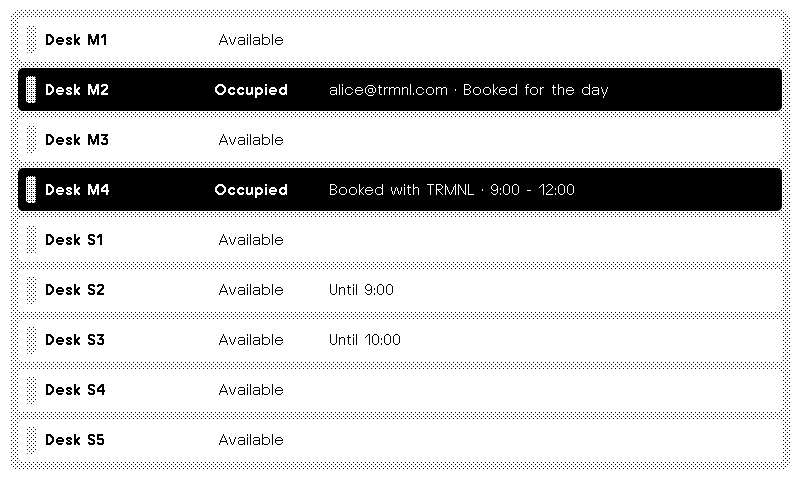
Use Grid for a compact, at-a-glance status board with a smaller number of similarly named resources.
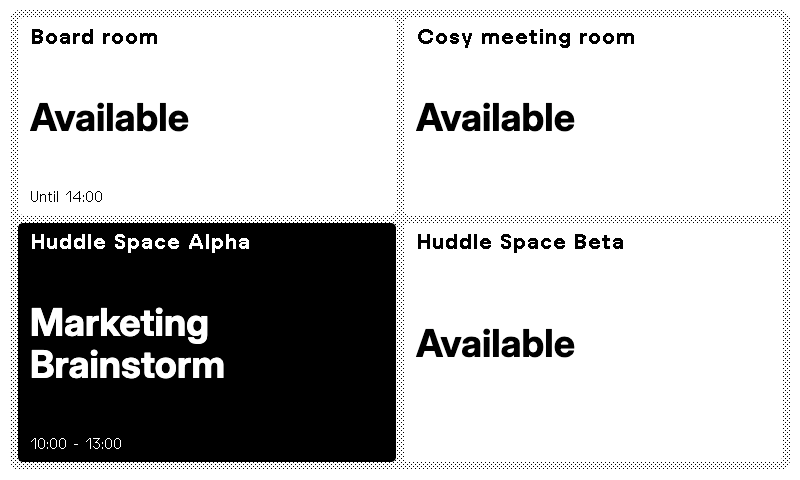
Preview both layouts on the target device when resource names vary significantly in length.
The list screen renders the first 10 selected resources. The grid screen renders the first 9, or the first 4 in a mashup. Split larger inventories into focused collections so every selected resource has a display slot.
Booking QR code
The collection QR opens a resource chooser. After the visitor selects a resource, the normal Booking with TRMNL page shows its availability.
The QR appears only when:
- Booking with TRMNL is enabled in Booking settings.
- Show booking QR code is enabled on the collection.
- At least one selected resource supports public booking.
Google and Microsoft resources can support public booking. iCal resources are read-only, so they can appear in the collection display but are omitted from the booking chooser.
See Booking with TRMNL for the complete visitor and security workflow.
Assign a collection to a device
- Open the collection.
- Under Displays, choose a device or supported mashup position.
- Select Add to device.
- Open the device display settings if its refresh interval or placement needs adjustment.
A collection can appear on multiple devices. Displays assigned by another installation manager are visible as read-only entries marked other manager.
To stop showing the collection, select Remove next to the device assignment. Removing a display assignment does not delete the collection or its calendars.
Print the collection QR
When public booking is available, open the collection and select Print booking code. The print-friendly page contains a QR code and the collection name.
Post the code where intended visitors can reach it. Anyone who possesses the URL can open the unauthenticated booking page while Booking with TRMNL is enabled.
Do not print a code while QR Code Security is enabled: daily URL rotation invalidates the printed copy the next day. See Booking with TRMNL.
Edit a collection
Open the collection and select Edit to change its name, type, layout, resources, or QR setting.
Changing the selected resources updates every device showing that collection. Removing a resource from a collection does not remove its calendar from Booking or affect the provider calendar.
Delete a collection
Open Edit, select Delete Collection, and confirm. Deleting a collection removes its display assignments and collection QR link. It does not delete the included calendars or provider events.
Provider and synchronization behavior
- Google Workspace can supply room or custom resource types, including vehicles and equipment, plus building, floor, section, features, and capacity.
- Microsoft Exchange supplies rooms, desks, Desk Pools from Microsoft Places workspaces, and configured Parking Spaces, plus location, equipment features, and capacity.
- Personal and iCal calendars normally have less resource metadata.
- Provider metadata appears on Booking management pages and helps identify resources while editing a collection; the device collection screen focuses on name and availability.
- A disconnected integration removes its synchronized resources, so affected collections can become smaller or empty.
- A collection can display a read-only calendar even when it cannot offer that calendar in the booking chooser.
Troubleshooting
No resources are available while creating a collection
Connect and synchronize at least one integration. If a connection already exists, open Integrations, select Synchronize, confirm the calendars are selected under Synchronized Calendars, and check Calendars again.
A resource is missing from the filtered list
Change the collection type to Any. Provider metadata may classify the resource differently than expected.
A selected resource disappeared
Confirm its provider integration is still connected and synchronize it. A resource removed by the provider is also removed from TRMNL during synchronization.
Deselecting a calendar under Synchronized Calendars also removes it from every collection that includes it. Re-selecting the calendar does not restore the membership — add it back to the collection by hand.
The collection QR is not shown
Confirm Booking with TRMNL is enabled globally, the collection QR setting is enabled, and at least one included Google or Microsoft resource is writable.
A resource appears on screen but not in the booking chooser
The resource is not available for public booking. This is expected for iCal calendars and can also occur when Booking with TRMNL or provider write access is unavailable.
Status or booking details are stale
Open the individual calendar, refresh it, and inspect its last-sync time and sync error. Correct provider access before changing the collection.
Show a collection in a browser
In Displays, select Other (via URL) and click Add to device. Open the resulting /screen/:code URL on the display's browser. Each collection can have one URL display alongside its TRMNL devices. The page refreshes automatically and uses the collection's list or grid layout.
URL displays use the same per-calendar billing rule. A calendar shown on both a URL display and a TRMNL device is counted once. Click Remove to stop URL access; adding the URL display again creates a new code.