# Image
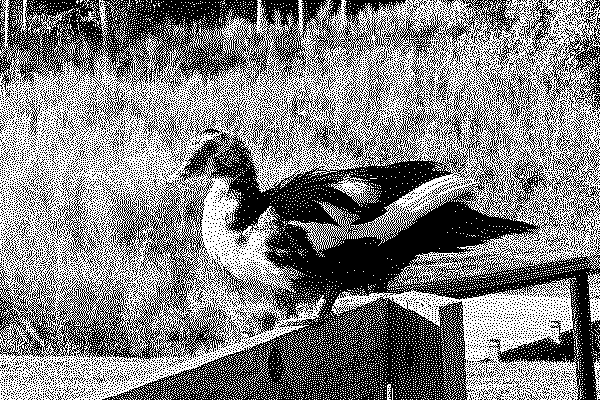
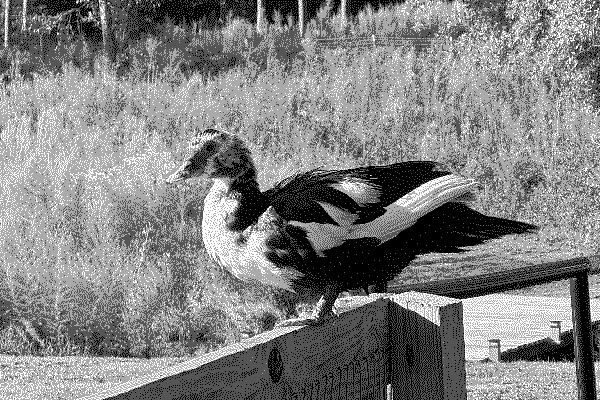
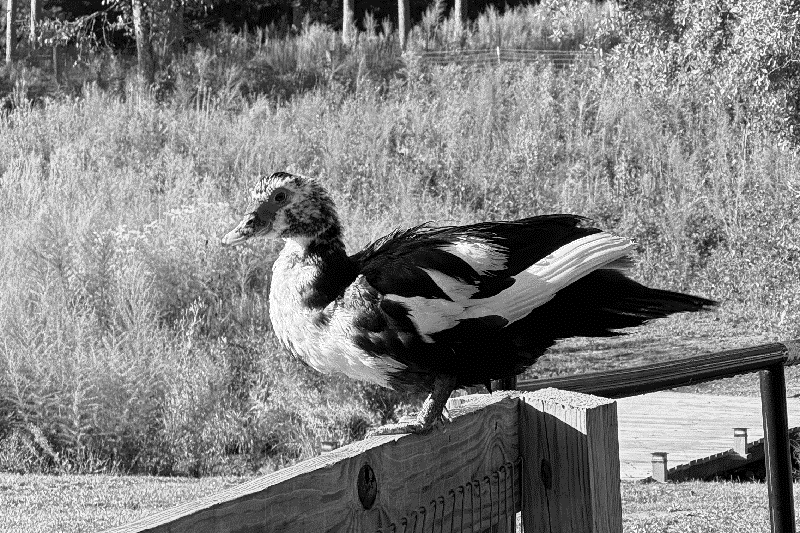
Place images on a screen and control their size, object fit, and inversion. On 1-bit displays, dithering arranges black and white pixels so an image still reads as shades of gray.
### Dithering
Add `image-dither` to a raster image to have it dithered to the screen's palette. The dithering itself is a platform behavior: TRMNL applies it when it renders the screen.
You mark the image and the platform dithers it to the target device's palette at render time.
You dither the image yourself before you serve it. A released build from the CDN and a build compiled from this source both ship the same CSS, and neither one dithers.
```
 ```
```
```
```
 ```
The demo below picks a source photo per bit depth with visibility utilities; every other mode falls back to the full-color source. The docs preview simulates the dithered look with a docs-only helper, so it approximates what the platform renders.
Dithering
### Sizes
Two utilities cap the width of an `img` that carries the `image` class: `image--small` at 80px and `image--xsmall` at 40px. Both follow the screen's content scale, and both set a maximum, so a narrower source keeps its own width and the aspect ratio is never touched.
For any other dimension, use a width or height utility from [Size](/framework/docs/3.4/size) .
image--small
image--xsmall
ImageSizes
```
```
The demo below picks a source photo per bit depth with visibility utilities; every other mode falls back to the full-color source. The docs preview simulates the dithered look with a docs-only helper, so it approximates what the platform renders.
  
Dithering
### Sizes
Two utilities cap the width of an `img` that carries the `image` class: `image--small` at 80px and `image--xsmall` at 40px. Both follow the screen's content scale, and both set a maximum, so a narrower source keeps its own width and the aspect ratio is never touched.
For any other dimension, use a width or height utility from [Size](/framework/docs/3.4/size) .
image--small
image--xsmall
ImageSizes
```
 ```
### Object Fit
Control how an image fills a box whose aspect ratio differs from its own.
#### Options
- **Fill:** The image is resized to fill the given dimension. If necessary, the image will be stretched or squished to fit.
- **Contain:** The image keeps its aspect ratio, but is resized to fit within the given dimension.
- **Cover:** The image keeps its aspect ratio and fills the given dimension. The image will be clipped to fit.
Fill
Contain
Cover
Object Fit Options
```
```
### Invert
Use `invert` to flip every pixel to its opposite: black becomes white, white becomes black. It rescues artwork authored for the opposite background, such as a white-on-black glyph placed on a light screen.
It composes with [Image Stroke](/framework/docs/3.4/image_stroke) . The pixels flip first, so the stroke keeps the color its shade modifier names.
Original
Inverted
Invert
```
```
### Adaptive Icons
Use `image--adaptive` to recolor a monochrome silhouette icon in the screen's icon color. Only the icon's shape is used: its own pixel colors are ignored. The color follows the device, Raw/Preview, and the active theme, exactly like framework text, so one set of icons works everywhere.
The icons below are SVG silhouettes from the plugin weather set, originally solid black glyphs on a transparent background. A PNG with transparency works the same way, since only the alpha shape is read. To watch them adapt, switch the device or Style in the screen picker (top right): the icons repaint to match the screen, while a plain `image` would keep its original pixels.

72°Adaptive icon

SunnyAdaptive icon
Adaptive Icons
```
```
### Object Fit
Control how an image fills a box whose aspect ratio differs from its own.
#### Options
- **Fill:** The image is resized to fill the given dimension. If necessary, the image will be stretched or squished to fit.
- **Contain:** The image keeps its aspect ratio, but is resized to fit within the given dimension.
- **Cover:** The image keeps its aspect ratio and fills the given dimension. The image will be clipped to fit.
Fill
Contain
Cover
Object Fit Options
```
```
### Invert
Use `invert` to flip every pixel to its opposite: black becomes white, white becomes black. It rescues artwork authored for the opposite background, such as a white-on-black glyph placed on a light screen.
It composes with [Image Stroke](/framework/docs/3.4/image_stroke) . The pixels flip first, so the stroke keeps the color its shade modifier names.
Original
Inverted
Invert
```
```
### Adaptive Icons
Use `image--adaptive` to recolor a monochrome silhouette icon in the screen's icon color. Only the icon's shape is used: its own pixel colors are ignored. The color follows the device, Raw/Preview, and the active theme, exactly like framework text, so one set of icons works everywhere.
The icons below are SVG silhouettes from the plugin weather set, originally solid black glyphs on a transparent background. A PNG with transparency works the same way, since only the alpha shape is read. To watch them adapt, switch the device or Style in the screen picker (top right): the icons repaint to match the screen, while a plain `image` would keep its original pixels.

72°Adaptive icon

SunnyAdaptive icon
Adaptive Icons
```
 ```
#### How It Works
- The framework runtime (`plugins.js`) reads the icon and hands it to the stylesheet as a mask; CSS supplies the paint.
- The icon color comes from `--framework-semantic-icon-{color,image,under}`. By default it matches the primary text color; a theme overrides it with `theme-slots.semantic-icon`.
- Silhouettes only. The image is flattened to its alpha shape, so never use it on photos or multi-color logos; use [Image Stroke](/framework/docs/3.4/image_stroke) to keep those legible instead.
- Composes with `image-stroke` (the stroke outlines the recolored shape). Not meaningful with `image-dither` or `invert`.
**The icon must be readable by CSS.** Recoloring uses a CSS mask, which the browser only permits for same-origin icons or hosts that send `Access-Control-Allow-Origin`. An icon on an arbitrary third-party host stays a plain image in its own colors. Serve recolorable icons from your own origin, or inline the SVG with `fill="currentColor"`, which recolors with no classes and no hosting constraint.
### Related APIs
#### Adaptive icons under themes
An icon carrying `image--adaptive` is repainted with the screen's icon paint, keeping only its alpha channel, so it follows the active theme with no markup changes. Pick a Style in the screen picker to watch the icons on this page repaint. See [Themes](/framework/docs/3.4/themes) for what else a theme re-points.
Previous [
## Outline
Draw a pixel-perfect dotted rounded border on any element
](/framework/docs/3.4/outline)
Next [
## Image Stroke
Legible images when displayed on shaded backgrounds
](/framework/docs/3.4/image_stroke)
```
#### How It Works
- The framework runtime (`plugins.js`) reads the icon and hands it to the stylesheet as a mask; CSS supplies the paint.
- The icon color comes from `--framework-semantic-icon-{color,image,under}`. By default it matches the primary text color; a theme overrides it with `theme-slots.semantic-icon`.
- Silhouettes only. The image is flattened to its alpha shape, so never use it on photos or multi-color logos; use [Image Stroke](/framework/docs/3.4/image_stroke) to keep those legible instead.
- Composes with `image-stroke` (the stroke outlines the recolored shape). Not meaningful with `image-dither` or `invert`.
**The icon must be readable by CSS.** Recoloring uses a CSS mask, which the browser only permits for same-origin icons or hosts that send `Access-Control-Allow-Origin`. An icon on an arbitrary third-party host stays a plain image in its own colors. Serve recolorable icons from your own origin, or inline the SVG with `fill="currentColor"`, which recolors with no classes and no hosting constraint.
### Related APIs
#### Adaptive icons under themes
An icon carrying `image--adaptive` is repainted with the screen's icon paint, keeping only its alpha channel, so it follows the active theme with no markup changes. Pick a Style in the screen picker to watch the icons on this page repaint. See [Themes](/framework/docs/3.4/themes) for what else a theme re-points.
Previous [
## Outline
Draw a pixel-perfect dotted rounded border on any element
](/framework/docs/3.4/outline)
Next [
## Image Stroke
Legible images when displayed on shaded backgrounds
](/framework/docs/3.4/image_stroke)